Chapter 4
The Research Brief
Describe your study in your own words, then let a deterministic scan of that text suggest structured fields — which stay suggestions until you say otherwise.
What you'll be able to do
- Write and save a free-text study description
- Run "Review description" and understand exactly what it does and doesn't do
- Read a suggestion, see the exact text it matched, and Accept or Dismiss it
- Know which measurement a suggestion will be saved against
- Recognize when a review goes stale and needs to be re-run
Writing the study description
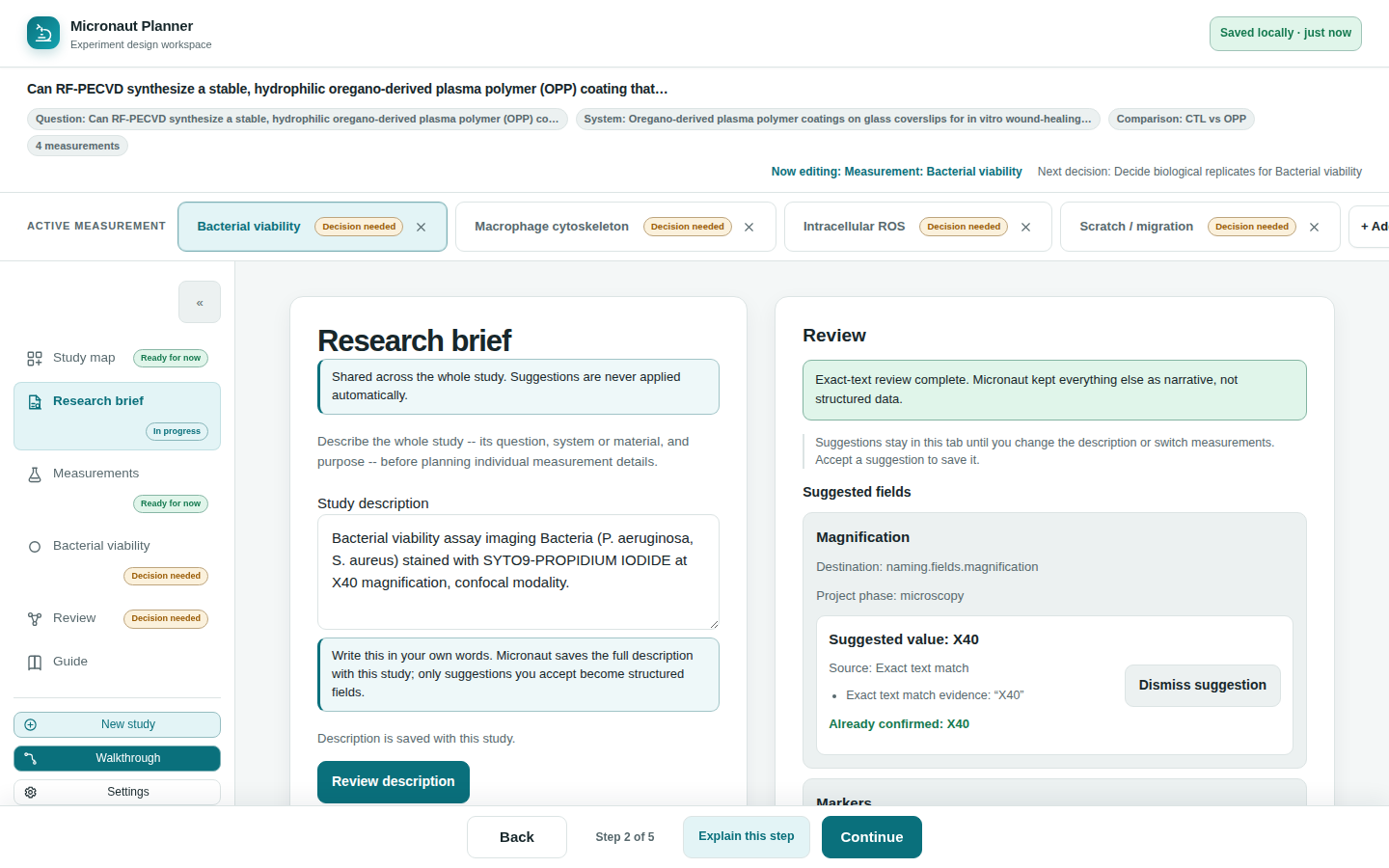
Research brief opens on one plain-language box: Study description. Write the question, organism, groups, samples, and relevant imaging context in your own words — the placeholder text says exactly that. Whatever you type is saved with the study as you go (the page's status line confirms "Description is saved with this study"), and it's shared across the whole study, not scoped to one measurement.
This narrative is never rewritten or normalized by the app — it stays exactly what you typed, because it's also the evidence source every suggestion below is checked against.
💡 Tip. Nothing about the description field itself is measurement-specific. If your study has several measurements, write about all of them here; the structured fields further down the page are what's scoped to whichever measurement is currently active.
Review description: what the scan actually does
Click Review description (disabled until you've written something) and Micronaut runs a one-time, synchronous scan of your saved text — not a model call, and nothing that "reads" your description the way a person would. It looks for four specific, exact-text things and nothing else:
- Marker or fluorophore names that match an alias in the built-in marker dictionary
- Biological replicate counts
- Magnification values
- Unambiguous ISO dates
Anything in your description that isn't one of those four things stays exactly as narrative — the app never claims to have understood your whole description, only to have found specific, checkable matches within it.
🔍 Why it works this way. An exact-text scan can be wrong about what you meant, but it can never invent a fact that wasn't already in your own words — every suggestion quotes back the text that produced it, so you can check its reasoning at a glance. That's a deliberate trade against a model that might "understand" more of your description but can't show you exactly why it proposed what it did.
Accepting or dismissing a suggestion
Each candidate the review finds sits in the review panel with the exact quoted text it matched, and two actions: Accept suggestion writes that value into the matching structured field (promoting it to a value you've reviewed, not a weak guess — see Every field remembers where it came from), while Dismiss sets it aside without touching the field. Nothing is written to any field until you explicitly accept it — the scan finding a match and a field actually changing are two separate, deliberate steps.
- Read the quoted text next to each suggestion — it's exactly what the scan matched in your description.
- Click Accept suggestion to write it into the corresponding field below, or Dismiss to leave that field untouched.
- Continue reviewing the rest of the list; accepting or dismissing one doesn't affect the others.
⚠️ Careful. Every accepted suggestion applies to one specific measurement — whichever was active when you ran the review. The page states this plainly above the field list ("Accepted measurement details will apply only to: ‹measurement name›"). If you switch the active measurement after running a review, accepting a suggestion becomes unavailable until you review again against the newly active one — the panel marks the review stale and asks you to re-run it, rather than silently applying an old match to the wrong measurement.
Measurement details below the review
Below the review panel, a Measurement details section shows a plain field-by-field interview for the study-level questions relevant to whichever measurement is currently active — the same fields a review suggestion can fill in. You can also type directly into any of these fields yourself at any time, independent of running a review at all; a direct edit is saved immediately and, like an accepted suggestion, is recorded as your own strong-source input.
Planning notes alongside the review
Whenever the app's rule-based advisor has something relevant to say about your current answers, a short planning notes panel appears alongside the review — the same deterministic, rule-driven guidance described in The app's advice is deterministic, rule-based — never AI. It updates automatically as you accept suggestions or edit fields directly.
Check yourself
You describe your organism, a marker name, and "we compared drought-stressed and well-watered plants" in the free-text box. Does Review description turn all of that into structured fields?
No. The scan only looks for marker aliases, replicate counts, magnification, and unambiguous dates. Your comparison-groups sentence stays narrative — it isn't one of the four things the scan matches — unless you type the group names into the relevant field yourself.
You run Review description while "Bacterial viability" is your active measurement, then switch to a different measurement before accepting a suggestion. What happens?
The review is marked stale for the new active measurement, and accepting is blocked until you re-run Review description against it — a suggestion found for one measurement is never silently applied to a different one.
Does clicking "Accept suggestion" change your saved study description text?
No. Accepting only writes the suggested value into its matching structured field; your original narrative text is never rewritten by the review.